Compatible sources
A source is one place AW Next can read achievements from: an official launcher’s local data, a Steam-compatible save file, or a console emulator’s trophy file. Every source is switched on or off individually in Settings → Sources.

Each source is a separate switch; the shield marks the official desktop libraries
After enabling a source, refresh the library. Only libraries actually detected on this PC are shown.
On this page
Official platform libraries
These read the launcher’s own local data. They are marked with a shield in Settings.
| Source | What AW Next reads | What it needs |
|---|---|---|
| Steam | Local appcache state, public-profile data, achievement schemas and cached product metadata | Steam installed; connecting an account is optional |
| GOG Galaxy | The Galaxy client’s local databases, plus compatible legacy saves and UniverseLAN | GOG Galaxy installed, or a game running UniverseLAN |
| Ubisoft Connect | Native local data and legacy Uplay formats | Ubisoft Connect installed |
| Epic Games | Local installations, plus the games the account owns and their official achievement state once you connect an account | Epic Games launcher for local installs; an account connection for the rest |
| Xbox PC | Local Game Pass / Microsoft Store installs, plus the games the account owns and their Xbox Network achievement state | The Xbox app for local installs; an account connection for the rest |
Steam, Epic Games and Xbox PC each have three settings rather than on/off: None, Installed (games on this PC) or Owned (the whole library that account owns). Owned lists games that are not installed here, which is what a PC with none of that store’s games installed needs; it requires the account connection below.
[!NOTE] Steam unlocks are read from the stats Steam keeps on this PC, so a private profile, or private Game details, works for every game played here, including games added through SteamTools, LuaTools or GreenLuma, and a card moves the moment Steam records an unlock. A public profile only adds your name and avatar. Games played only on another PC need the account connection below. These unlocks raise an AW Next notification once Steam client games is enabled under Notification; see Notifications.
[!NOTE] EA Desktop is deliberately different. It reads EA Desktop’s local achievement log for games that sit outside EA’s managed folders. It does not import your regular official EA library.
Connected accounts
Steam, Epic and Xbox PC can each optionally be connected from Settings, to read what the local files do not carry. Every token is encrypted before it is stored on this PC, and everything else works without any account at all.
| Account | What connecting adds |
|---|---|
| Steam | Two switches, both off by default and shown while the Steam source is set to Owned: add the games you own and add the games shared with you through Steam Family, so a private profile - or one that has never installed most of its library here - still lists the right games. Either one makes the first scan after enabling it noticeably longer, since every added game resolves its achievements and artwork once. A game with nothing to read locally is then read from your Steam profile, which needs its game details set to public; the answer is cached for six hours, so a second launch the same day does not ask again. Hide games no longer in your Steam library removes the leftovers; a game installed on this PC or shared through Steam Family is never hidden. Sign-in happens on Valve’s own page. |
| Epic Games | Which achievements you have already unlocked, and with Owned the whole library the account holds - each game with its full achievement list, unlock state and rarity. A few owned games have achievements Epic’s own store data never lists (Shadow of the Tomb Raider, Civilization VI); those are still listed, sourced from Nemirtingas’ games-infos-datas, but without unlock state - Epic does not share it, even signed in. Names, descriptions and rarity of an installed game work without connecting an account. |
| Xbox PC | Your Xbox PC library: unlock state and rarity from Xbox Network, cached locally afterwards. With Owned it also brings games the account has only played elsewhere. |
A tile carries a small badge for what the connection established - bought on that store, shared through Steam Family, or no longer in your library - so the library says where a game came from rather than leaving you to guess.
Steam-compatible saves
AW Next reads the achievement and stats files written by Steam emulators - achievements.json,
achievements.ini, achievements.bin, stats.ini and compatible layouts - from the locations those
tools use.
That covers Goldberg and GBE Fork (the two AW Next can also install and repair), GreenLuma, LumaPlay, SmartSteamEmu, CreamAPI, the Nemirtingas emulators and scene releases writing a compatible layout. A game whose files are in a custom location can be added under Settings → Folders.

The folders AW Next checks on its own, and the ones you add - per-game saves or whole libraries
Portable releases are the case worth knowing about. A CODEX/RUNE/CPY release normally writes to
%PUBLIC%\Documents\Steam\<SOURCE>\<appid>, but a portable copy keeps that same tree inside the game
folder, where nothing is looking for it. Adding the game’s own folder under Settings → Folders is
enough: its steam_emu.ini (or cpy.ini) names the AppID, and the save tree is looked for beside it
before the shared location. A game with no save written yet is still added, at 0%.
A release that ships no emulator config at all, or whose ini you deleted, works too: the save
tree itself is read, since Steam\RUNE\<appid> carries the AppID in its folder name. The same
layouts are probed one level below the folder you add, so pointing AW at your games library works as
well as pointing it at one game.
When a folder cannot be used, AW says why: it holds a game but no readable unlock file, it holds nothing achievement related, or it is an EA app release. That last one never keeps achievements on disk - they live on the EA account and are read through the EA source - so no folder you add can make such a game appear. The message also names how many layouts were probed, so “nothing found here” is distinguishable from “not looked at”.
Two of these are a different shape and are handled separately:
- Goldberg SocialClub - the Rockstar / Social Club variant, with its own source switch.
- RUNE Ubisoft Connect - RUNE’s Ubisoft emulator keeps
achievements.cfgfiles underDocuments\RUNE\Ubisoft Connect\achievements. They are found without adding a folder (aRUNE\Ubisoft Connectfolder added under Settings → Folders works too) and follow the Ubisoft Connect emulator switch. Names and icons come from Ubisoft Connect’s achievement list for the game; without it only the achievement numbers are shown. - Uplay R2 - the Ubisoft equivalent of the Goldberg path, for compatible titles. It has no source switch of its own: the saves flow through the Steam emulator source, and its repair and loader tools live in Settings → Emulators → Ubisoft / Uplay R1/R2. See Uplay R2 setup.
If a game using one of these shows no achievements, its Game Health panel names the missing piece - see Game Health and Goldberg / GBE setup.
Console emulators
| Emulator | Console | Trophy / achievement file |
|---|---|---|
| RPCS3 | PlayStation 3 | TROPUSR.DAT beside the trophy list |
| ShadPS4 | PlayStation 4 | TROP*.XML, which holds the list and the earned state together |
| KytyPS5 | PlayStation 5 | _Trophies\<title>\trophies_*.json beside the emulator; the list comes from the game’s sce_sys\trophy2 package |
| Xenia | Xbox 360 | .gpd, which likewise holds both |
Each one is watched live, so an unlock in the emulator raises a notification like any other.
RPCS3, ShadPS4 and Xenia let you move their data off the default path, and AW Next reads the same settings the emulator reads rather than assuming the default:
- RPCS3 - the trophy folder follows
vfs.yml(including a$(EmulatorDir)-relative remap), aportablefolder beside the executable, andRPCS3_CONFIG_DIR. - ShadPS4 - recognised whether you point at the emulator, its
userfolder,game_dataitself, or since 0.19 itstrophyfolder orhome\<user>\trophy, and its config is read from either of the two places shadPS4 has kept it. - Xenia - follows the
storage_rootandcontent_rootin its config. - KytyPS5 - recognised whether you point at the emulator, its
_Trophiesfolder or one game’s folder inside it. The games are looked up in the game folders of the KytyPS5 launcher (Kyty.ini) and beside the emulator, unpacked or as a.zararchive the launcher runs as it is. The trophy list lives in the game itself; a game deleted after AW Next has seen it stays listed, as not installed, from the copy of its list and art kept then.
So a relocated RPCS3 virtual disk or a ShadPS4 data folder can be added under Settings → Folders directly, with no emulator executable anywhere near it.
RetroAchievements
Games played on any emulator that reports to RetroAchievements come from your account rather than from a file. Turn on the RetroAchievements source, then fill in the account card under it: your username and the Web API key shown on retroachievements.org/settings. The key is encrypted before it is stored on this PC.
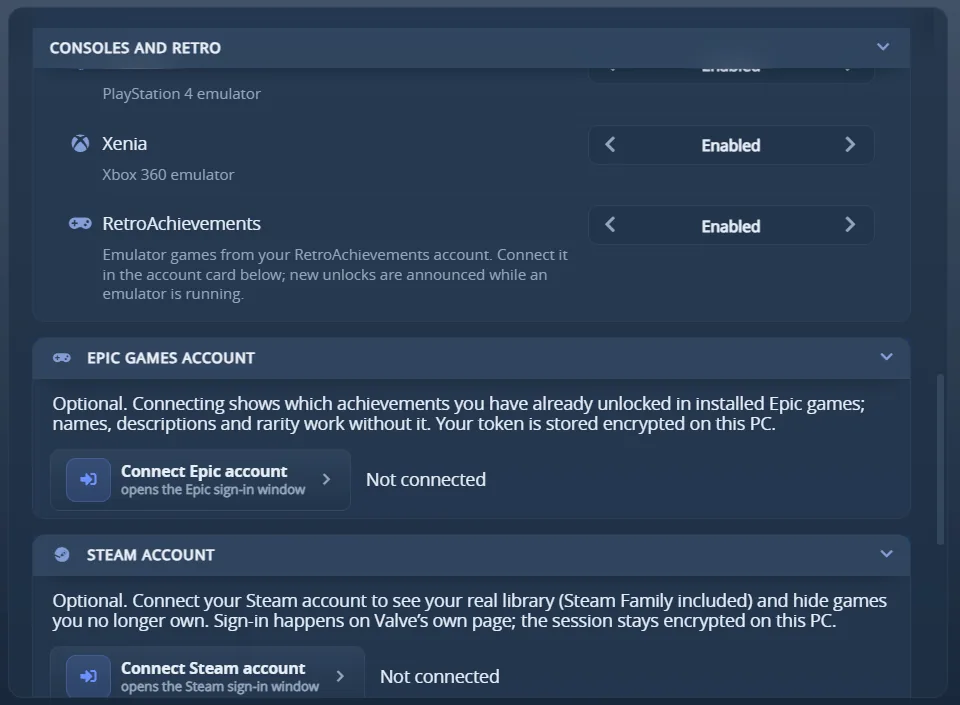
The RetroAchievements switch, with the Epic and Steam account cards under it
Import library then adds every game you played, with its achievements, unlock dates, points and rarity; a second import only fetches the games whose progress moved. New unlocks are announced within seconds while an emulator that reports to RetroAchievements runs - RetroArch, DuckStation, PCSX2, PPSSPP, Dolphin, BizHawk, Project64 or any other RA-integrated build, recognised by name or by the RetroAchievements dll beside it - and within a few minutes otherwise. A game played for the first time is added on its own.
AW Next reads your unlocks from retroachievements.org, so RetroAchievements must stay switched on in
the emulator: turning it off there stops the unlocks from being sent at all, and AW Next has nothing
to announce. To see only AW Next’s notification, hide the emulator’s own pop-up instead. In
RetroArch that is Settings → Achievements → Visibility → Unlock Notifications. On
RetroBat, which rewrites retroarch.cfg at every launch, close RetroBat and add this line to
RetroBat\emulationstation\.emulationstation\es_settings.cfg:
<string name="global.retroarch.cheevos_visibility_unlock" value="false" />
Use cheevos_visibility_mastery the same way for the mastery pop-up.
Other sources
| Source | What it is |
|---|---|
| Xbox 360 games recompiled for PC | ReXGlue ports and similar recompilations keep their own achievement list in an achievements folder (.toml, .tsv) or SaveData\Achievements.json, either in the game folder or in Documents\<game>. The list comes from the game’s own default.xex, in every language it ships and with secret achievements kept secret; dbox.tools fills in DLC achievements and games whose executable was not found, the Xbox 360 marketplace supplies the box art, and Exophase the share of players who earned each achievement. A game that writes only a JSON list, with no title id, is recognised when every one of its achievements matches an Xbox 360 title (Gears of War 2 Hollow, for one). A list kept in Documents is found on its own; for one kept in the game folder, add that folder under Settings → Folders (picking SaveData or another folder inside it works too) or use Smart find. Unlocks are notified live, play time is tracked, and Reset achievements works on them. It follows the Xenia source switch and the notification preset chosen for the Xbox 360. |
| Games for Windows LIVE | XLiveLessNess installs. Each profile’s unlock records are read, and the achievement list, its texts and its icons come out of the game’s own executable, so nothing has to be downloaded. Watched live. |
| Dead Space 2 MarkerPatch, Alice: Madness Returns MadnessPatch | A Steam copy with the mod installed is found on its own. Any other copy: add the game folder under Settings → Folders (a folder inside it, such as Binaries\Win32, is taken as the game folder), or let Smart find look through your game libraries. The achievement list is built from the mod’s own texts and images, and the unlocks it saves are notified live. Each has its own source switch, and nothing is read while the mod’s AchievementSupport is turned off. |
| FINAL FANTASY VII (2013) | That re-release predates Steamworks achievements and keeps its 36 unlocks in an 8-byte bitfield beside its saves, found in Documents without adding the folder by hand. |
| Import notification cache | Reads the background tracker’s own cache as an extra source of past unlocks. |
| Manually added games | A game added from a title and executable, with an optional platform and Steam AppID - see Advanced tools. |
Steam metadata, without an API key
No Steam Web API key and no connected Steam account are used. Each game’s achievement list is
fetched with a keyless chain: the official GetGameAchievements endpoint first (which carries hidden
descriptions, icons and global rarity), then SteamHunters enriched with the SteamCommunity page, then
SteamCommunity alone, and a browser scrape only as a last resort.
Results are cached per language in %APPDATA%\Achievement Watcher Next\steam_cache\schema, so local
sources and previously seen games keep working offline.
Steam never announces when a game update adds achievements, so a cached list re-checks itself every
3 days and picks up anything new without ever removing an achievement already cached. To check
immediately, use Settings → Advanced → Recheck achievement lists. Settings → Advanced →
Automatic achievement data updates turns the periodic recheck off entirely, for anyone who
maintains steam_cache by hand; the one-off Recheck achievement lists button still works either
way.
DLC and update achievements are tagged with the group that owns them (for example a Hearts of Stone tag) under the achievement title. The groups come from the same keyless lookup.
Sources you do not see
In Simple interface mode the Sources list folds away six niche rows - GreenLuma, LumaPlay, the two Nemirtingas emulators (the GOG and Epic save readers), Goldberg SocialClub and the notification-cache import - but only while a row is still enabled and no game in your library came from it. Switch one off, or own a game it detected, and its row comes straight back, so the interface mode can never hide the one control that would explain a missing game. Advanced always lists every source.
Next: Notifications - choose how unlocks are announced.
Source-specific setup: Goldberg / GBE · Uplay R2 · Game Health