Game Health
When a game does not behave the way you expect, open its Game Health panel before anything else. It is the one place that says whether AW Next can see the game, read its achievements and announce its unlocks - and it offers only the repairs that can genuinely fix that game.
Open it from the tools button in the top-right corner of a game tile, or from the game’s right-click menu. The same panel carries two more tabs: Executable, which sets the program to watch while you play, and Notifications, where that one game can take its own popup preset, position, sound and scale - see Per-game behavior.
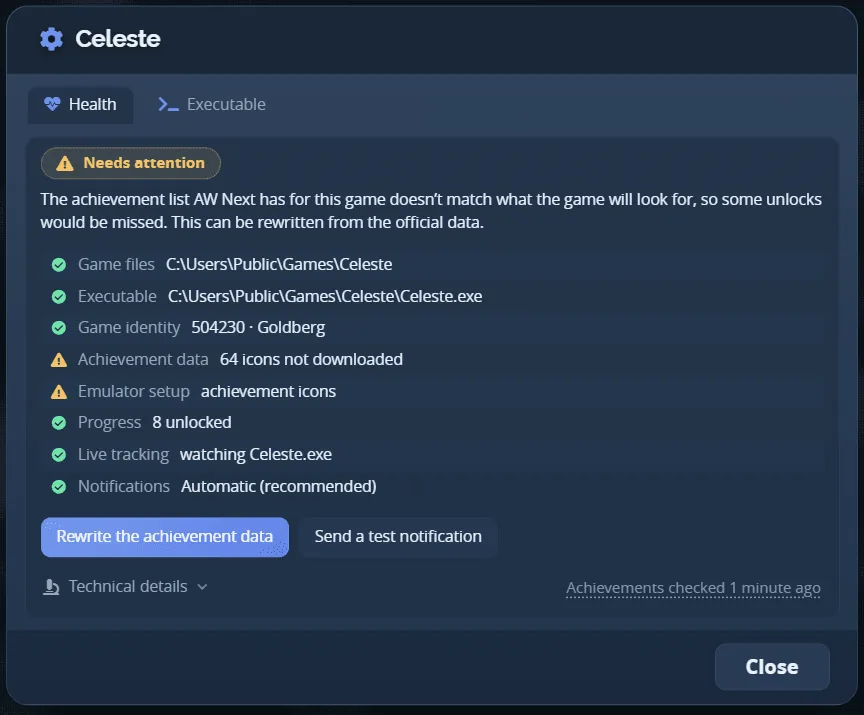
One state, the reason for it, the checks behind it, and the repairs that apply
The three states
| State | What it means |
|---|---|
| Ready | The game is detected, its achievement data is available, and AW Next is watching it for unlocks. |
| Needs attention | The game works, but part of its setup is incomplete. The checks show which part. |
| Not tracking | Something essential is missing - the game cannot be located, or it has no achievement data at all. |
The sentence under the state explains the cause in plain words. The checks under that show which part is at fault, and any repair button acts on exactly that.
- Simple mode states outcomes in plain words - Achievement data found, Tracking active, Game saves detected. Advanced adds exact counts, the watched process and the notification transport.
- Technical details, at the bottom in both modes, holds every raw value - press Copy for a bug report.
The checks
| Check | What it answers | Typical fix |
|---|---|---|
| Game files | Is the install folder still there? | Locate the game |
| Executable | Which program should be watched while you play? | Locate the game |
| Game identity | Which AppID and platform was this game matched to? Simple mode leaves it out - it is a diagnostic value, not something to act on directly. | Correct the game ID file or Set AppID manually |
| Achievement data | Is there an achievement list, and is it complete? | Rewrite the achievement data |
| Emulator setup | Does a game that needs a Steam emulator have one, and which one is serving it? For a Ubisoft game this also covers the Uplay loader and whether it ever asked for an achievement. | Restore the emulator file, Switch to the supported emulator, or Repair Ubisoft achievement support |
| Progress | Has any unlock or save been found yet? | Launch the game and unlock something |
| Progress counters | For CODEX/RUNE-style games that track a stat instead of a flat unlock, has AW Next fetched the stat that drives each achievement? Only shown for games that use one. | Fetch progress counters |
| Live tracking | Is the background tracker watching this game’s process? | Watch this game |
| Notifications | Which transport delivered the last notification for this game, and why? | Send a test notification |
The repairs
Only the repairs that can fix the game in front of you are shown. Each says what it will change and where the previous files are kept; nothing is rewritten without a backup, and no repair runs without a confirmation.
| Repair | What it does |
|---|---|
| Locate the game | Opens a picker so you can choose the executable to watch. |
| Open the game folder | Opens the install folder in Explorer. |
| Rewrite the achievement data | Writes the achievement list, icons and emulator settings. Existing files are copied to a backup first. |
| Restore the emulator file | Downloads the supported emulator build and installs it into the game folder, keeping any existing file as a backup. |
| Switch to the supported emulator | For a game served by another crack that recorded nothing, installs the supported emulator over it and renames that crack’s own configuration to .bak rather than deleting it. |
| Correct the game ID file | Rewrites steam_appid.txt when the emulator announces one game and AW Next matched another. Asks for the right AppID, suggesting the one AW Next matched - a confirmed choice, never automatic - and the previous file is kept. |
| Fetch progress counters | Asks Steam which stat drives each achievement, for CODEX/RUNE-style games; writes nothing in the game folder. |
| Repair Ubisoft achievement support | For a compatible Ubisoft game, rewrites the loader configuration, schema and save redirection in one transaction, with every touched file backed up - see Uplay setup. |
| Enable achievements offline | Only for a Ubisoft game whose own loader log proves it never asked for an achievement, because it believes it is signed out. Adds one placeholder session key to the INI beside the game, and nothing else. Press it again to take the key back out - see Uplay setup. |
| Watch this game | Adds the game to the background tracker so playtime and live unlocks are recorded. |
| Unmute progress notifications | Turns progress notifications back on for a game you muted. |
| Send a test notification | Fires a notification carrying this game’s own name and artwork, through the transport it would really use. |
[!IMPORTANT] A mismatch is not always the emulator’s fault - if it was set up on purpose for the ID on disk, leave it alone. Right-click Set AppID manually to fix a folder-name mismatch for good instead of correcting the file every time - see Goldberg / GBE setup.
Common states and what to do
| The panel says | What it usually means |
|---|---|
| No achievement list could be found | The game has no achievements at all, or its source is switched off. Check Settings → Sources. |
| This game needs a Steam emulator and none is set up | Use Apply emulator fix from the game’s right-click menu - see Goldberg / GBE setup. |
| The emulator file that reads it is missing | Restore the emulator file puts the matching runtime back. |
| The achievement list doesn’t match what the game will look for | Rewrite the achievement data. This is the usual result of a repack update. |
| No achievement progress has been found yet | Normal for a game you have not played since setting it up. Launch it and unlock something. |
| AW Next isn’t watching this game while it runs | Watch this game adds it to the tracker. |
| The last notification could not be sent | Send a test notification, then see Notifications. |
| Windows hid the last notification during the game | The Windows notification went straight to Notification Center because the game was full screen or Do Not Disturb was on. Turn on Priority notifications, or switch the mode to Automatic or In-game overlay. |
| Working - Windows fallback active | Not a fault. Automatic delivery chose a Windows notification for this game; see how Automatic decides. |
| The game has never asked for an achievement | It reads its empty Ubisoft session as signed out. Enable achievements offline unblocks it; nothing is sent anywhere. Launch the game once afterwards - the row then reads Offline achievements on, launch the game once until you have. |
| Offline achievements on, launch the game once | The setting is written and nothing has been judged yet. The button beside it now reads Turn offline achievements off, and takes it back out. |
| Served by ALI213, OnlineFix, GBE Fork… | The emulator actually reading that game, named from its own files. A Ubisoft game already served this way is not offered a Uplay repair: its Uplay layer is unused, not broken. This covers releases that keep Valve’s steam_api64.dll: a RUNE build running from Steam\steamclient64.dll, or a VOICES38 release loading its own renamed GBE Fork (steam_api64.v38). Never install the emulator over the latter; Rewrite the achievement data is all it needs. |
| Only some icons are missing | The achievement list is complete and every unlock is seen. Rewrite the achievement data downloads the missing icons. |
| Run for over an hour and not one achievement recorded | The crack serving the game most likely never reports achievements. Switch to the supported emulator when it is offered; otherwise check that the game starts from its own folder. |
| Game ID file, with a Steam shortcut to this game | Steam starts the game from a non-Steam shortcut with no steam_appid.txt beside it, so the emulator saves under another ID. Rewrite the achievement data writes the file there. |
Next: Troubleshooting - for problems Game Health does not resolve on its own.