Advanced tools
The tools on this page live under Settings → Advanced, or in a game’s right-click menu. The Advanced tab only exists while the interface is in Advanced mode - switch the Interface control at the top of Settings if you do not see it. Nothing is lost by switching back afterwards.

Setup & maintenance; the other sections fold away below it
On this page
Setup and maintenance
| Tool | What it does |
|---|---|
| Fix all detected games | Runs the appropriate repair (Steam/GBE Fork or Ubisoft/Uplay R2) over every compatible detected game with a known install folder. This is what rebuilds games that already have a setup. |
| Disable hardware acceleration | Turns off GPU acceleration when the window or overlay misbehaves. Requires a restart. |
| Clear caches | Deletes only re-downloadable caches: update files, the Steam/Ubisoft schema and icon cache, and downloaded emulator-fix tools. Settings, saves, backups and manually placed files are never touched. |
| Recheck achievement lists | Checks Steam for achievements added by a game update since the last check. This runs automatically every 3 days; the button forces it now. |
| Automatic achievement data updates | Switch, on by default. Turning it off stops that automatic recheck and the blank-description repair, for anyone who maintains steam_cache by hand. Recheck achievement lists still works as a one-off check while it is off. |
Source-specific repair settings are split under Settings → Emulators. Ubisoft / Uplay R2 contains its package health, DLL import/restore controls, and targeted batch repair. Loader and INI details stay automatic.
Clear caches is the first thing to try when an update keeps failing on the same downloaded file.
Diagnostics

Versions, and one click to the logs and data folders
The Diagnostics card prints the app, Electron, Node and Chrome versions, and opens the logs folder, the data folder or an update check. Export logs (.zip) bundles every log file into one archive without closing the app first - the processes writing those files never stop, so copying them by hand is unreliable in exactly the situation the logs are wanted for. Your user name and any key or token are masked in the archive, not in the logs themselves. Those versions and the log files are what a bug report needs - see Troubleshooting for what to collect and how to strip private data from it first.
Profile backup
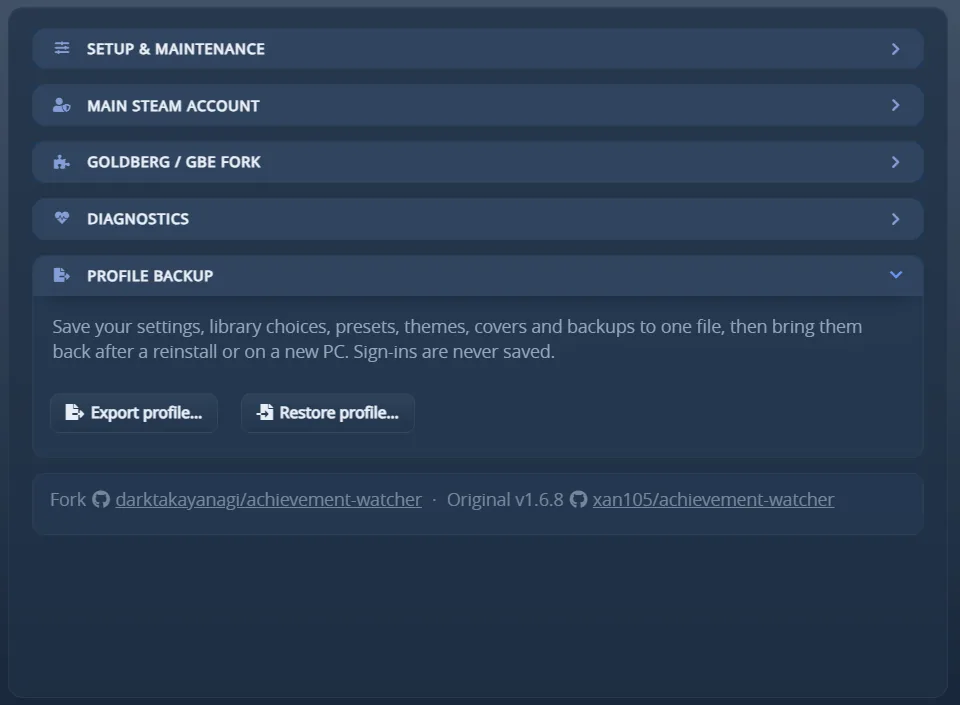
Export profile and Restore profile, under Settings → Advanced
Export profile… saves your settings, library choices, presets, themes, covers, custom backgrounds,
GBE restore points and playtime to one .awbackup file, for a reinstall or a new PC. Sign-ins,
caches and logs are never saved, so you sign in again to Epic, Steam, Xbox and RetroAchievements
afterwards. Restore profile… checks the whole file first and applies it at the next start; the
files it replaces are kept, and a restore that fails puts everything back.
AppID blacklist
A game you removed from the library with Blacklist is listed here with the ID it was blacklisted under, and can be restored individually. Blacklisting is how you get rid of a stray folder that the scan keeps finding but that is not really a game.
Reset a game’s achievements
To play a game through again from zero, use Reset achievements - on the game’s page beside the playtime, or from its right-click menu. Every achievement goes back to locked, so the game can unlock them again and AW Next announces them as new when it does.

Reset sits beside the completion count on the game’s own page
Nothing is deleted without a copy. Every file involved is backed up first to
%APPDATA%\Achievement Watcher Next\backups\achievements\<appid>\<date>\, and the confirmation lists
the exact files before anything is touched. A file whose backup fails is skipped rather than cleared.
| Source | What a reset does |
|---|---|
| Steam emulators (Goldberg / GBE and compatible layouts, including Goldberg SocialClub and Uplay R2) | Removes the achievement save. The emulator writes a fresh one at the next unlock. |
| RPCS3 | Removes TROPUSR.DAT. The trophy list (TROPCONF.SFM) is left alone. |
| ShadPS4 | Relocks the trophies inside TROP*.XML, which also holds the trophy list - so the file is edited, never removed. |
| KytyPS5 | Removes the game’s trophies_*.json unlock files. The trophy list stays in the game’s own package. |
| Xenia | Clears the earned flag inside the .gpd, which also holds the achievement list - same reason. |
| Steam, GOG Galaxy, Ubisoft Connect, EA, Epic, Xbox | Not possible. These keep unlocks on your account and re-synchronise them; only the account itself can clear them. AW Next says so instead of appearing to work. |
Progress counters stored beside the achievements (stats.ini, stats.bin, …) are reset too: for a
“travel 1000 km” style achievement the counter is the progress, and leaving it full would make the
achievement either fire instantly or never again. They are in the backup like everything else.
Restore an achievement backup, in the same right-click menu, puts a whole reset back where it came from. Refresh the library afterwards to read the restored unlocks back in.
[!NOTE] AW Next’s own record of what was already unlocked is cleared at the same time, including in the running background tracker. Without that, a re-earned achievement would be compared against a record that still had it and would never be announced again.
Forget a game
Forget this game…, in the right-click menu, clears everything AW Next keeps about a game: its achievement saves (backed up first, as a reset does), play time, cached achievement list and icons, its per-game settings, and the emulator configuration AW Next wrote into its folder. The confirmation lists each part before anything is touched. The next scan finds the game again as a new one. Remove from list only hides a game; Forget starts it over.
A different achievement language for one game
Game settings → Achievement language, in the right-click menu, shows one game’s achievements, and its notifications, in another language than the rest of the library. Same as the app goes back to the global choice.
Add a game manually
The + beside the library search adds a game from a title and an executable, with an optional
platform and Steam AppID. Use it for a game no source detects - a standalone build, a portable
install, or an emulator you launch yourself.
A manually added game:
- is launchable and tracks playtime like any other entry;
- shows No achievements if it has none, and is left out of completion statistics rather than counted as 0%;
- can adopt a Steam achievement schema later, by adding the AppID, without being recreated;
- keeps guarded per-game diagnostics, while destructive actions stay hidden.
Manually added folders are marked with a compact icon in the Folders list, so you can tell them from the locations Smart Find discovered.
Set a game’s AppID by hand
Right-click a game whose folder name matches several Steam releases - so the automatic name match
picked the wrong one - and choose Set AppID manually…. The choice is remembered per install
folder and written to steam_appid.txt; Clear the manual AppID override undoes it. Game
Health’s Correct the game ID file action now asks for the AppID too, starting from AW Next’s own
suggestion instead of only confirming it.
Mark an achievement as unlocked
An achievement that a source cannot see - one earned before you set tracking up, or one an emulator never recorded - can be marked by hand from its right-click menu: Mark as manually unlocked, and Clear manual unlock to undo it. Manual unlocks persist across scans, and are cleared along with everything else by a reset.
Emulator and repair tools
Diagnosis and repair for Goldberg / GBE Fork setups, the GBE runtime installer, Steamless and the opt-in API-check bypass live in Settings → Emulators and in each game’s Emulator & tools submenu. They have their own guides:
- Goldberg / GBE setup - diagnose and repair an emulated Steam game
- Uplay setup, R1 and R2 - the Ubisoft equivalent
- Goldberg / GBE reference - file formats and detection rules
Remove AW Next’s emulator configuration, in the same right-click menu, undoes only the DLC
section, switches and identity keys AW Next itself wrote to a game’s configs.user.ini - never a
value you or the repack set - and deletes the file only when nothing else is left in it. It shows
exactly what it will remove before doing anything, which is the only way to recover if you never
backed up that file yourself.
Apply the GOG achievement fix (UniverseLAN)… appears on a GOG game that ships a Galaxy dll. It
installs the UniverseLAN build matching that game’s Galaxy SDK, keeps the original dll as a backup and
never overwrites existing UniverseLAN saves. The unlocks it writes under
%LOCALAPPDATA%\UniverseLAN are read and notified like any other.
[!WARNING] Repairs create backups, but they still modify game files. Use them only with games you own.
Next: FAQ - short answers to the questions that come up most.