Notifications
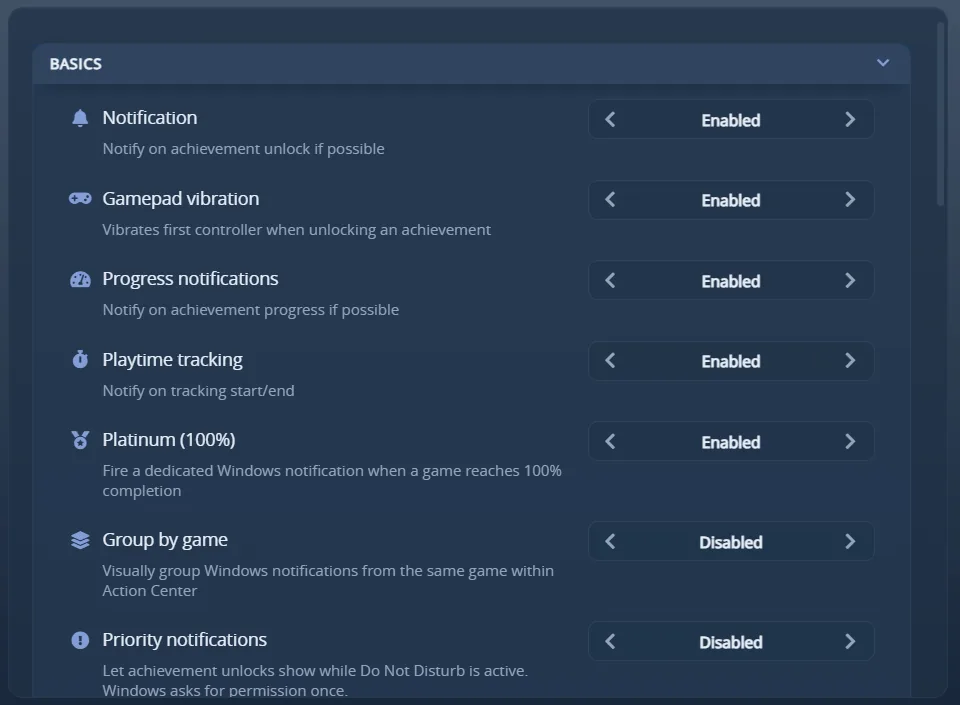
AW Next announces an unlock with a native Windows notification (toast), an in-game overlay popup, or both. Choose how under Settings → Notification.
On Linux, the notification is the desktop’s own (GNOME or KDE), and the overlay works the same way. Do Not Disturb and the Priority notifications switch are covered in Supported desktops.
One delivery mode, one preset - Automatic handles the rest
On this page
- Choose a delivery mode
- How Automatic decides
- Where the current state is shown
- Priority Windows notifications
- Games Steam runs
- How the popup looks
- Sounds, volume and duration
- Position and scale
- Progress popups
- Per-game behavior
- Trophy mode
- Show unlocks on stream (OBS)
- Options
- Notes
- Screenshot souvenirs
- Playing with Windows HDR on
- Video clips
- If a test or unlock does not appear
Choose a delivery mode
| Mode | Behavior |
|---|---|
| Automatic (default) | Uses the in-game overlay when it can be shown, and a Windows notification when it cannot. Nothing to configure. |
| In-game overlay | Always opens the styled popup above the running game, including in exclusive fullscreen where it may not be visible. If the overlay reports that it could not display at all, that one notification still arrives as a Windows notification rather than being lost. |
| Windows notification | Always uses the Windows system notification. Achievement and progress notifications use the achievement icon; playtime notifications can include game artwork and a progress bar. |
| Both | Sends the same event to both transports. |
The main library window may stay closed in every mode: the background tracker handles delivery.

The overlay popup, drawn by the selected preset with the game’s own artwork
Independently of the mode, Websocket @localhost:8082 broadcasts every notification event as JSON
on a local websocket, for stream overlays and other external tooling. It is on by default, listens on
127.0.0.1 only - so nothing on the network can read it - and adds no visible notification of its
own. Turn the row off if you do not use it. The same address also serves a ready-made stream overlay,
described in Show unlocks on stream (OBS).
[!TIP] Use the built-in test buttons after changing the mode. A successful test confirms the display path; a real unlock still depends on the relevant game source being watched correctly.
How Automatic decides
Each notification is routed once, from what AW Next can actually observe at that moment:
| Situation | What happens |
|---|---|
| Nothing covering the screen | In-game overlay. |
| The game holds exclusive fullscreen (Direct3D) | Windows notification - an always-on-top popup is not drawn over an exclusive fullscreen game, so it would play invisibly. Borderless and windowed games keep the overlay. |
| The app reports it cannot display the popup (no usable preset, renderer unavailable) | That notification is sent as a Windows notification instead. |
| The overlay fails to display | Automatic stays on Windows notifications for ten minutes, then tries the overlay again. |
| The overlay was asked but never reported back | No second notification is sent - a duplicate is worse than a delayed switch - and the next unlock uses a Windows notification. |
AW Next remembers which transport last delivered for each game and uses it only as a tie-breaker, when Windows cannot answer whether a game is in exclusive fullscreen. A live answer always wins over what was remembered, so a game never gets stuck on the wrong transport.
The transport is chosen before anything is sent, and a fallback is only ever allowed when the primary transport reported a definite failure. The same unlock is therefore never announced twice.
[!NOTE] Exclusive fullscreen is respected rather than worked around: AW Next does not inject into games or force display-mode changes to put a popup on top of one.
Where the current state is shown
Open a game and check its Game Health panel. The Notifications row reports the transport that actually delivered the last notification for that game and why - for example Working - Windows fallback active in Simple mode, or Windows notification · game in exclusive fullscreen in Advanced. Until a game has had a notification, the row shows the configured mode instead of claiming an observation that has not happened. See Game Health.
Priority Windows notifications
Full-screen games and other automatic Windows rules can turn on Do Not Disturb, which sends ordinary toasts to Notification Center without showing them on screen. Enable Settings → Notification → Priority notifications to mark achievement unlocks as important. Windows then asks once whether AW Next may send those notifications; you can allow or refuse it in Windows notification settings.
This is deliberately off by default. It applies to achievement and completion unlocks only, never to
progress or playtime updates. The underlying Windows toast uses the urgent scenario, supported on
Windows 10 version 2004 and later, and remains subject to Windows’ notification permission and system
policy. See Microsoft’s app-notification documentation.
Games Steam runs
Steam shows its own pop-up for the games it runs, so AW Next stays quiet for them by default. Enable
Settings → Notification → Steam client games to get AW Next’s notification too, with its sound,
overlay, rarity and screenshot souvenir. It covers owned games and games added through SteamTools,
LuaTools or GreenLuma alike: AW Next follows the stats file Steam rewrites in appcache\stats when a
game records an unlock, and only an unlock that just happened is announced. To keep AW Next’s
notification alone, turn off Steam → Settings → Notifications → I unlock an achievement.
How the popup looks
The look of the in-game popup is a preset: nine ship with the app, you can design your own with
ordinary controls, and a preset can be shared as a single .awpreset file.
→ Presets and the Preset Designer
Sounds, volume and duration
- Import
.wav,.mp3,.ogg,.flac,.m4aor.aacfiles from the Notification settings. - Random is an entry in the sound list, picked like any other sound: choose it and every notification plays a different file from the ones you have. It previews like any other choice too - selecting it, moving the volume slider under it or firing a test all play a real sound, a different one each time.
- Rare achievement sound and 100% completion sound (Advanced mode) give a rare unlock and the completion popup a sound of their own, for both the overlay and Windows notifications. Both start on “Same as unlocks”; “None” makes that kind of popup silent. A sound chosen for one game in its own panel still wins.
- Progress sound (Advanced mode) does the same for progress popups: “None” mutes them while unlocks keep their sound. It wins over a game’s own sound, since it is about the kind of popup, except for a game set to no sound at all. To stop one game’s progress popups entirely, right-click it and mute its progress instead.
- Overlay volume ranges from 0% to 200%. Values above 100% apply an overlay-side boost; Windows notification playback is limited by the system audio path.
- Duration can follow the preset automatically or use a fixed cap.
- Playtime notifications are silent by design.
A preset someone shared with you can carry its own sound, which is used instead of the one selected here. See Share a preset.
Position and scale
Choose a corner, edge or centered position from the Notification settings. Positions are measured against the whole screen, so a bottom anchor sits on the bottom edge rather than above the taskbar, matching the layout shown in the preset builder. The custom position can be moved with Reposition and is stored for later sessions; it is used exactly as you left it, and a position saved on a monitor that is no longer connected is brought back into view.
The scale setting resizes the whole popup without changing the preset’s layout: every preset is drawn exactly as it is at 100%, only larger or smaller. Reposition shows the popup at the selected scale, so what you place is what you get.
Progress popups
Counter achievements (kill 50 enemies, travel 100 km) can raise a progress popup at every step. In Advanced mode, Progress position and Progress scale give those popups a place and a size of their own, for example unlocks at the bottom right and smaller progress at the bottom left. Same as unlocks, the default, keeps today’s behaviour and follows a game’s own position when it has one. Any other choice applies to the progress popups of every game, which is what keeps them apart from unlocks even where a game has its own position. The crosshair beside Progress position places a custom anchor for progress only; until it is placed once, it starts from the unlock anchor. These two settings only move the in-game popup: Windows decides where its own notifications appear.
Progress milestones, in the common notification settings, shows a progress notification only when a counter crosses another 10, 25 or 50% of its goal instead of at every step. It applies to both the popup and the Windows notification. The unlock itself is always shown.
The in-game overlay list also supports keyboard shortcuts for moving, snapping and click-through - see the Overlay guide - plus optional gamepad control, covered in the Controller guide.
Per-game behavior
Open a game’s tools panel and choose Notification to give that game a different popup preset, position, sound or scale. Every field inherits the global setting by default, and only the values you change for that game are stored; sound also offers explicit silence and random choices. The crosshair beside Position drags a preview where that game’s popup should appear, without moving the global position or another game’s. The five test buttons preview that game, its artwork and every selection currently shown, without changing achievement progress. A preset or sound that is removed falls back to the global value, and renaming a user preset in the designer keeps its game assignments.
Right-click a game to mute its progress notifications without disabling achievement unlocks or completion notifications. A duplicate guard also prevents the same unlock from appearing twice when a watched save is rewritten.
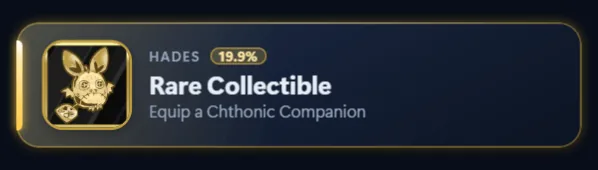
Achievements with a global unlock rate below the rare threshold display their rarity percentage and are drawn in the preset’s rare styling: gold at 5% or less, silver up to 10%, bronze up to 15%.
Trophy mode
Settings → General → Rarity display switches to Trophy mode: every achievement is graded by
its global unlock rate (gold under 20%, silver under 50%, bronze otherwise or when the rate is
unknown), in the game window, the overlay, the profile trophies and the notification. All three
grades use the preset’s rare styling (state-rare plus tier-gold, tier-silver or tier-bronze),
so a preset needs nothing new; platinum stays the separate completion state. In Advanced mode the
two bounds can be moved. The app tells a preset its tier in rarityTier (with rarityMode and the
localized rarityGrade); a preset that predates the field falls back to the percentage and so keeps
the rare tiers.

The profile counts every unlock by grade, with platinum for finished games

On a game’s page each achievement carries its grade and the share of players who have it
A gold unlock in the AW Next preset
Show unlocks on stream (OBS)
Capturing the popup as a window does not work, and cannot: the popup window is created for one unlock and destroyed a few seconds later, so by the time OBS lists it, it is already gone. Use a Browser source instead. OBS keeps a browser source loaded for the whole stream, so there is nothing to catch in time.
- Settings -> Notification -> OBS browser source. Preview opens the page in your browser with a sample unlock every ten seconds, which is the quickest way to confirm the whole chain works. Copy link puts the address on the clipboard.
- In OBS: + -> Browser, paste the address into URL.
- Give the source whatever Width and Height suit your layout. The card scales itself to fill the box, so there is no size to work out.
That is all. The source shows the same preset, the same artwork and the same rarity styling as the in-game popup, and follows the preset you pick in Settings from then on. The test buttons under Settings -> Notification fire into it as well, whichever delivery mode is selected, so one click checks the popup and the stream at once.
[!TIP] A bigger source is a sharper card. The card is laid out at the source’s size rather than drawn small and stretched, so a source with more pixels renders more detail. Give it roughly twice the preset’s own box and place it at half size in your scene:
http://127.0.0.1:8082/obs/_configreports both numbers. The only part that cannot get sharper is the achievement icon itself, which Steam only publishes at 64x64.
[!TIP] Add
?test=1to the address while you position the source: it shows a sample unlock every ten seconds so you can see what you are aligning. Remove it when you are done.
Options
Append them to the address, ?first=x&then=y:
| Option | Effect |
|---|---|
?test=1 |
Repeats a sample unlock every ten seconds, for positioning the source. |
?scale=2 |
Pins the card at that zoom instead of fitting it to the source. ?scale=app follows the scale set in Settings. |
?duration=8000 |
Holds each card for that many milliseconds instead of the configured duration. |
?sound=1 |
Plays the notification sound through the browser source, so it reaches the stream without capturing desktop audio. Off by default, since the app already plays it on your own speakers. Tick Control audio via OBS on the source to put it in the mix. |
/obs/preset/Xbox/ |
Uses one named preset for the stream, whatever the desktop is set to. Any installed preset name works, including your own. |
Notes
- The page is deliberately blank between unlocks. It is not broken, and it is not idling either: the whole document is taken out of the layout, so no animation runs and OBS has nothing to repaint. A stream overlay that keeps animating costs real CPU for hours at a time; this one costs nothing until an achievement pops.
- It is local only. Both the page and the feed listen on
127.0.0.1, so the address works on the machine running AW Next and nowhere else. Nothing on your network, and nobody watching the stream, can reach it. - Achievement icons are served from this machine for sources that keep their artwork locally (Goldberg, emulators, and your own library art). Only pictures a notification actually announced are served, and only pictures.
- One copy of AW Next serves it. The address belongs to whichever copy started first, so a second instance (or anything else already using port 8082) leaves the source with nothing to connect to. Close the extra copy and the source reconnects on its own within a few seconds.
- If the source stays blank on a real unlock, check that notifications work at all first with the test buttons in Settings, then that the Websocket row is on.
Screenshot souvenirs
Screenshot on unlock saves a picture of the screen a moment after an achievement pops, so the
notification itself is in the shot. Files land in <folder>\<game>\<date> - <achievement>.png, and
Open folder in the same row takes you straight there - creating the folder first if nothing has
been saved yet. The folder defaults to Pictures\Achievement Watcher Next and can be changed at any
time; the button shows the one in use.
Several achievements unlocking in the same second each keep their own file, and a game whose title Windows refuses as a folder name is handled rather than silently losing its screenshots.
Playing with Windows HDR on
HDR screenshots defaults to Automatic. At capture time, AW Next checks whether HDR is active on the primary display. If it is, a small one-shot helper captures an FP16 frame through Windows Graphics Capture and tone-maps its highlights into an ordinary SDR/sRGB PNG. The helper exits as soon as that one image is written; it does not keep a recorder, GPU session or Electron window alive.
When Windows HDR is off, Automatic uses the same standard capture path as before. Off always uses that standard path. Missing Windows support, a blocked capture, a timeout or any other helper failure also falls back to the standard screenshot instead of losing the souvenir or interrupting the notification.
On multi-monitor setups the souvenir captures the primary monitor, so play on it if you want your screenshots to match.
Video clips
Video clip on unlock works like a console’s trophy video. While a game AW Next tracks is
running, the last seconds of play are kept in memory, already compressed by the graphics card’s own
video encoder; when an achievement pops, the stretch around it is saved as an MP4 in
<folder>\<game>\<date> - <achievement>.mp4. The folder is the card’s own, Videos\Achievement
Watcher Next unless you pick another. The unlock sits in the middle of the
clip, so the toast or overlay popup is in it too. Achievements unlocking close together share one
clip instead of writing near-identical copies.
| Setting | Choices | Default |
|---|---|---|
| Clip length | 10 to 30 seconds, half before the unlock and half after | 20 s |
| Format | H.264, HEVC or AV1, saved as MP4 | H.264 |
| Resolution | Screen, 2160p, 1440p, 1080p or 720p, never above the screen | 1080p |
| Frame rate | 30 or 60 FPS | 30 FPS |
| Quality | Low, Medium or High | Medium |
| Sound | Game only, or the whole PC | Game only |

The Video clip section sits at the bottom of the Notification tab and is off until you turn it on
The row under them estimates the size of one clip for your screen. It is a ceiling: the encoder runs at a constant bitrate and a quiet scene comes out smaller.
- What it costs. Nothing runs while no game does. During play, capture, scaling and encoding stay on the GPU, on the encoder block that is separate from the one rendering the game; the recorder uses well under 1 % of the CPU and about 70 to 110 MB of memory plus the length of one clip. Nothing is written to disk until an achievement unlocks.
- Format. H.264 plays everywhere, Discord and phones included. HEVC and AV1 make smaller files. AV1 needs a GeForce RTX 40, Radeon RX 7000, Intel Arc or newer graphics card; on a card without the chosen format the clip is recorded in H.264. A card without any hardware video encoder cannot record clips, and the log says so.
- HDR. With Windows HDR on, the clip is tone-mapped with the same curve as HDR screenshots, so it looks right on any screen. HDR screenshots set to Off applies to clips too.
- Sound. Game only records the game and leaves voice chat and music out. When the game’s sound cannot be recorded on its own, the whole PC is recorded instead.
- What is captured. The monitor showing the game, as it appears on screen, notifications included. A very old game running in exclusive fullscreen may record as black frames.
If a test or unlock does not appear
- Confirm notifications are enabled, and check the Notifications row of the game’s Game Health panel - it names the transport that last delivered and why.
- Check that the background tracker is running.
- For overlays, select a valid preset and test again outside an exclusive fullscreen game. Automatic already handles both of those cases on its own.
- If a full-screen game or Do Not Disturb hides Windows notifications, enable Priority notifications and approve Windows’ one-time request for AW Next.
- Check Windows notification settings for AW Next when notifications are missing.
- Open Settings → Advanced → Diagnostics and inspect the logs.
Continue with Troubleshooting if the problem remains.
Next: Presets and the Preset Designer - the look of the popup, and how to make your own.