Controller (gamepad) guide
AW Next can be driven with a gamepad in two independent places: the main window and the in-game overlay. Both are configured from Settings → Controller.
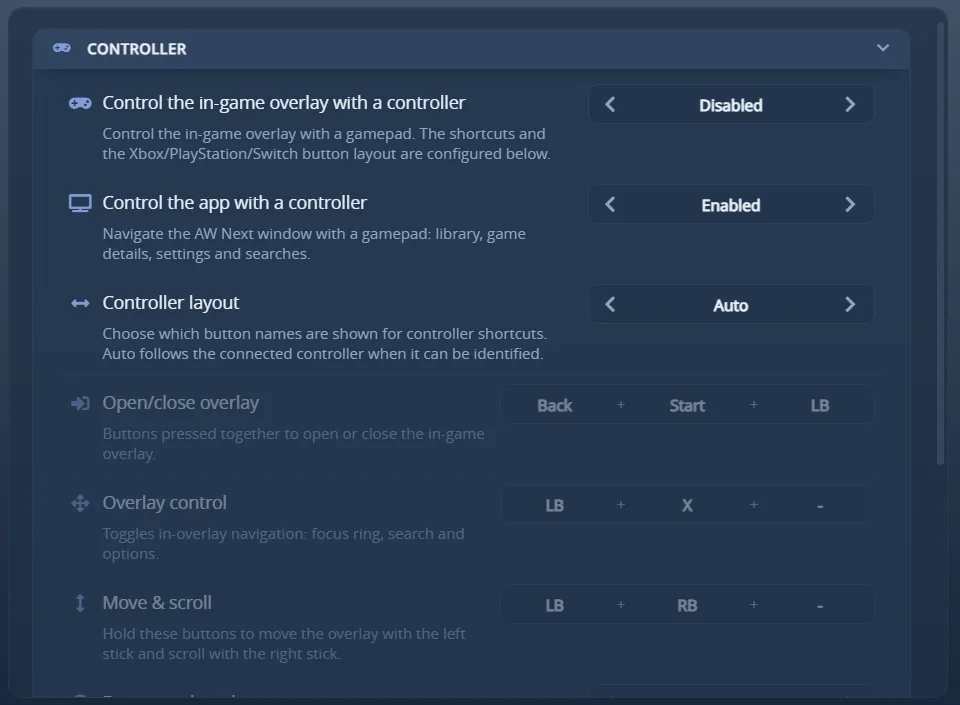
Overlay and app navigation, layout, and per-shortcut button bindings
On this page
The two switches
| Setting | Default | What it covers |
|---|---|---|
| Control the app with a controller | On | The main AW Next window: library, game details, settings and searches. |
| Control the in-game overlay with a controller | Off | The in-game overlay, driven by the background tracker while you play. |
They are separate on purpose. App navigation is pure renderer input and costs nothing, so it is on by default. Overlay control loads the native controller stack in the background tracker, so it is opt-in.
Shortcuts at a glance
Button names below use the Xbox vocabulary; the app shows them in whichever layout you select.
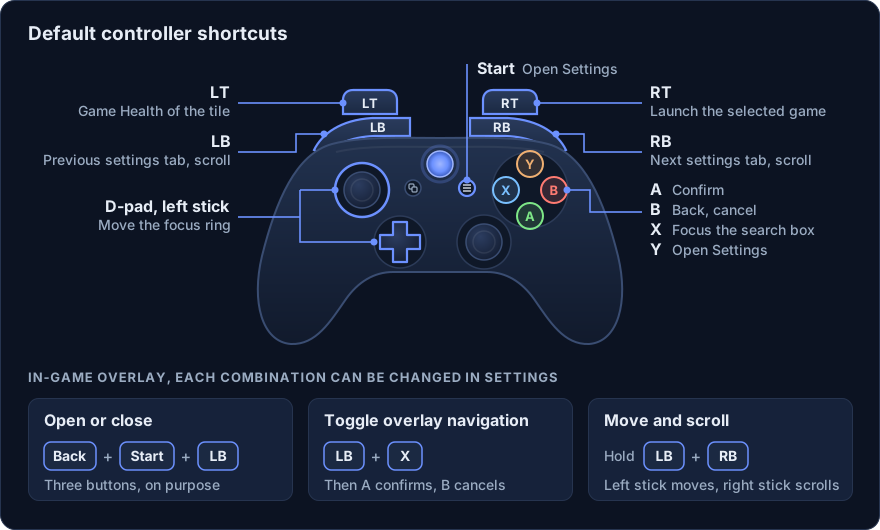
| Shortcut | Default | Where |
|---|---|---|
| Open / close the overlay | Back + Start + LB | In game |
| Toggle overlay navigation | LB + X | Overlay open |
| Move & scroll the overlay | LB + RB (held) | Overlay open |
| Confirm | A | App + overlay |
| Back / cancel | B | App + overlay |
| Focus the search box | X | App + overlay |
| Open Settings / overlay options | Y | App + overlay |
| Open Settings | Start | App |
| Launch the selected game | RT | App, library |
| Open Game Health for the selected game | LT | App, library |
| Previous / next settings tab | LB / RB | App, Settings open |
| Scroll the page | LB / RB | App, Settings closed |
The overlay toggle uses three buttons on purpose, so it cannot fire by accident mid-game. Every overlay shortcut is configurable and accepts one to three buttons.
In the library the tile itself is what the stick moves between, and A opens the game - the same thing clicking a tile does. The two controls painted on a tile are on the triggers instead, so no other shortcut had to give up a button: RT launches the selected game and LT opens its Game Health panel. Both do nothing unless a library tile is selected.
Options
- Controller layout - the vocabulary used for hints and button names: Auto (follows the connected pad when it can be identified), Xbox, PlayStation or Switch.
- Controller backend - Auto picks the best available input backend; XInput maximizes compatibility; GameInput suits newer Windows builds.
- Bindings - one to three buttons per shortcut. Shortcuts may share a button: the defaults deliberately do (LB + X and LB + RB both use LB), and the input layer resolves the overlap so holding one combo does not fire the other. Repeating the same button inside one binding is simply collapsed. The overlay toggle also accepts the Guide button; the two overlay modes do not, because they are read through the browser gamepad API, which does not report it reliably.
- Focus overlay when it opens - gives the overlay keyboard focus. Many games pause when they lose focus. Off by default.
- Send Escape to the game when opening with controller - sends an Escape key press to the focused game just before the overlay opens, so many games pause or open their menu. It runs only for controller-triggered opens while a game is running, never for the keyboard hotkey. Off by default.
App window
With app navigation enabled, pressing any gamepad button in the main window raises a focus ring. The D-pad or left stick moves between interactive controls, and the shortcuts in the table above apply. Two details worth knowing:
- B first leaves a focused text field, and only then goes back or cancels, so you never have to reach for the mouse to escape the search box.
- LB / RB switch settings tabs while Settings is open, and scroll the page when it is closed.
Moving the mouse or pressing a key on the keyboard returns control to the mouse and keyboard.
In-game overlay
Back + Start + LB opens or closes the overlay over the running game. LB + X then toggles navigation mode: the D-pad or left stick moves the focus ring, A confirms, B cancels, X focuses the search and Y opens the options panel. Holding LB + RB moves the overlay with the left stick and scrolls the list with the right stick.
The header shows a small UI badge while navigation is active, and the hint bar always reflects your own bindings and layout - not the defaults. The rest of the overlay is covered in the overlay guide.
[!IMPORTANT] Windows input caveat: Windows does not let a third-party app capture a controller exclusively, so the game may still receive button input while the overlay is open. If you want the game to pause, enable Focus overlay when it opens (most games pause when they lose focus) or Send Escape to the game when opening with controller.
Supported pads
Xbox controllers, PlayStation DualShock 4 / DualSense and Switch Pro controllers are supported. Xbox pads go through XInput; PlayStation and Switch pads are read over raw HID, which is why they work without any vendor driver.
When a controller is not detected
- Confirm the right switch is on - app navigation and overlay control are separate.
- Try the XInput backend explicitly; Auto can pick GameInput on a build where a given pad is not enumerated.
- Check the pad in the Windows game-controller panel (
joy.cpl) first. If Windows does not see it, AW Next cannot either. - For a bug report, add
debugLogging = trueto the[controller]section of%APPDATA%\Achievement Watcher Next\cfg\options.iniand restart. The background tracker then logs button-level controller diagnostics. There is no UI switch for it because it is verbose; turn it back off afterwards.
Next: Game Health - the per-game panel that says why a game is or is not being tracked.
On Linux
On Linux AW Next reads gamepads from the kernel’s input devices, and the shortcuts above work the same way. While Steam Input runs, it reads only Steam’s virtual pads, so one press is not counted twice. The Steam Deck and the Decky plugin are covered in Linux and the Steam Deck.